Get to know your workspace
The left navigation takes you to the main areas. The entries below it change to match the area you're working in.
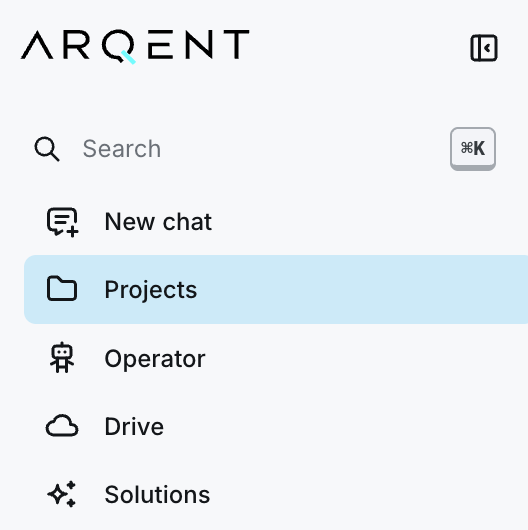
Your main starting points
| Interface label | What you use it for |
|---|---|
| Search | Find available content. The search shows which areas it covers. |
| New chat | Start a conversation for questions, writing and ideas. |
| Projects | Open a shared workspace for a topic. |
| Operator | Choose a digital team member based on their task description. |
| Drive | Open your file storage. |
| Solutions | Find available workflows for specific tasks. |
Find conversations and favorites
In Chat, the sidebar groups previous conversations by time period. In Projects and Operator, relevant entries appear below the main navigation.
Use the star next to a project, Operator or Solution to add it to Favorites. You can have up to three favorites. Select the star again to remove an entry.
Open search and help
Select Search, or press ⌘K on a Mac. Check the scope shown with the results: searching filenames is different from searching file contents. See Find content.
The question mark at the bottom opens Help. It provides access to the Operator catalog and human support.
Find personal settings
Select your name at the bottom of the navigation to open the user menu. It includes Profile, Integrations, Teams and language settings. Administration appears when you have the required access.
Make more room for your work
Use Collapse navigation to reduce the sidebar to icons. Use the corresponding control to expand it again. Hover over an icon to see its name.
Next: Complete your first task