Collaborate in Projects
A project brings collaboration around a topic together. Check which project is open before each step.
Open a project
- Select Projects.
- Search by name or choose an entry under Active Projects.
- Click Continue working.
- Check the project name above the section navigation.
Archived Projects contains archived projects you have permission to access.
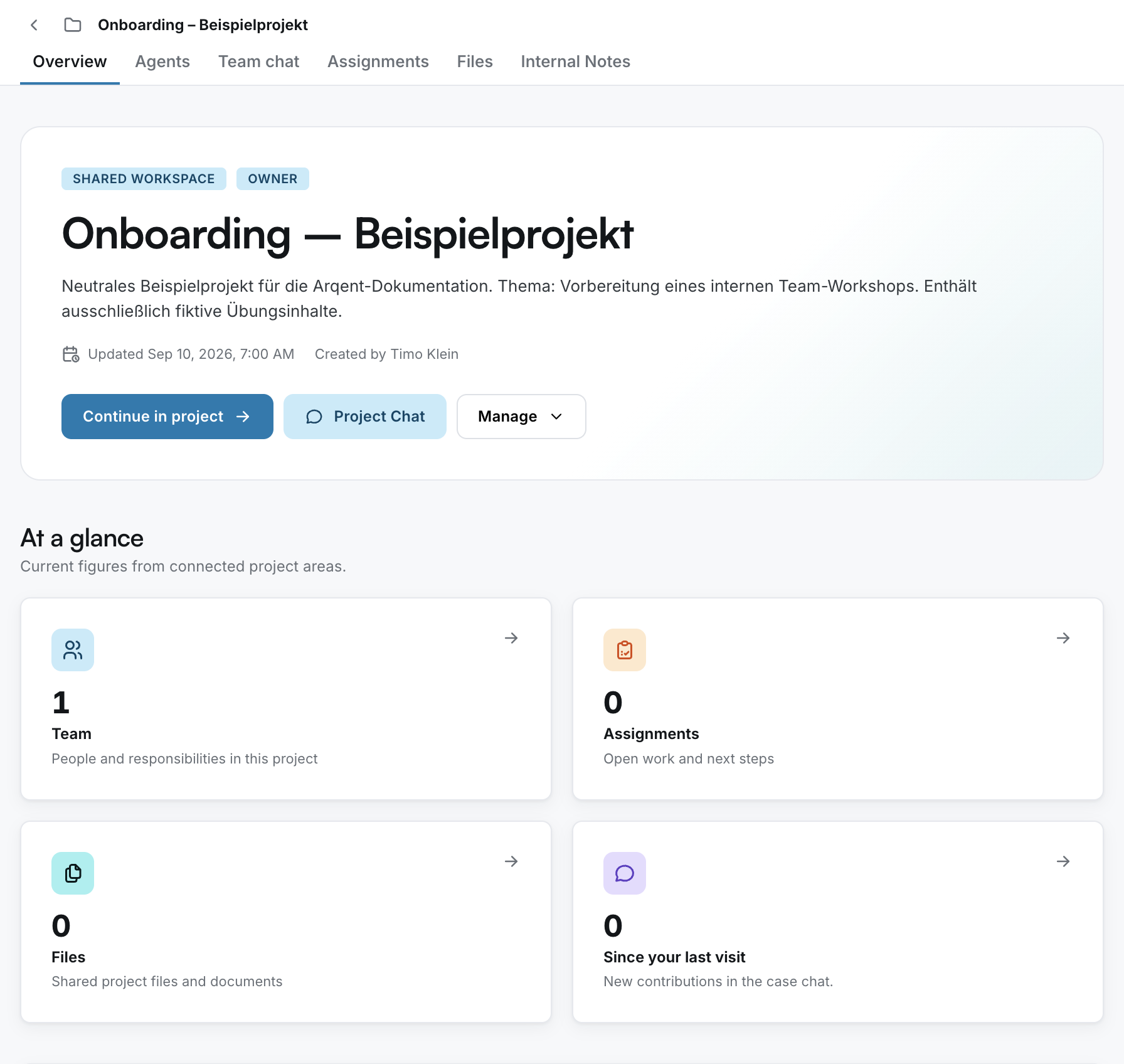
Project areas
| Interface label | What it contains |
|---|---|
| Overview | An overview of the project, tasks, files and collaboration. |
| Agents | Available Project Agents and their conversations. |
| Team chat | Conversation with the project team. Keep the shared context in mind. |
| Assignments | Tasks and work steps within the project. |
| Files | This project's file storage. |
| Internal Notes | Internal notes about the project. |
Create a project
If Create New Project is available:
- Open Projects and select Create New Project.
- Enter a clear, distinctive Name.
- Describe the purpose and working context in the text field below.
- Review the intended members and groups.
- Select Create.
Members and groups help determine who receives access. Add them according to your organization's rules. You don't need to invite others to a personal practice project.
Personal and shared work
A personal chat isn't automatically part of a project. A file in My Drive doesn't belong to a project simply because you intend to use it there. Use the appropriate project areas and check the sharing settings.
Guide: Organize work in a project
Something missing or looking different in your workspace?
Here's how to get support.