Manage files in Drive
Drive is your starting point for files and folders. Check the area displayed: My Drive and project files are separate contexts. A private Operator's folder sits inside its owner's personal Drive; a shared Operator has its own workspace.
Open My Drive
Select Drive on the left. My Drive is your personal file storage. The folder navigation shows your current location.
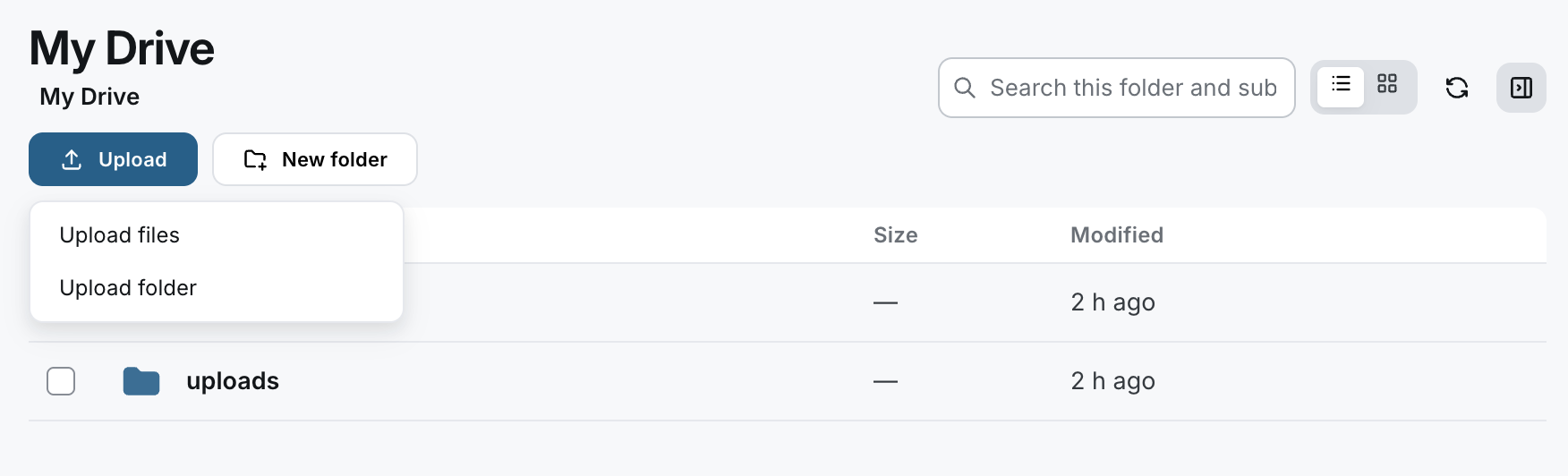
Upload files and folders
- Open the intended destination folder.
- Select Upload.
- Choose Upload files for files or Upload folder for a folder.
- Select the content in the file picker.
- Wait for the upload to finish and check the entries in the destination folder.
If an error appears, read it before repeating the upload. Supported formats and size limits may differ between areas.
Find files again
Use Search this folder and subfolders. Check the current folder and the results displayed. A filename search doesn't search inside a document.
Use Change view to switch between list and grid views. Refresh reloads the view. The details panel shows information about the current selection; Hide details hides it.
Use files in the right context
| Area | Where to start |
|---|---|
| Personal files | Drive → My Drive |
| Project files | Open a project → Files |
| A private Operator's files | Open the Operator → Files, where available; or open My Drive, then the operator folder and the Operator ID |
| A shared Operator's files | Open the Operator → Files, where available; this workspace is separate from your personal Drive |
Opening Drive doesn't select a source
Opening My Drive from a chat doesn't attach a file. Check which file is actually selected as input in the chat.
For the Operator chat picker and its two upload destinations, see Work with Operators.
Guide: Work with a document