Work with Chat
Use Chat for questions, writing, ideas and manageable tasks. A conversation keeps your previous exchanges together as context.
Start a chat
- Select New chat in the left navigation.
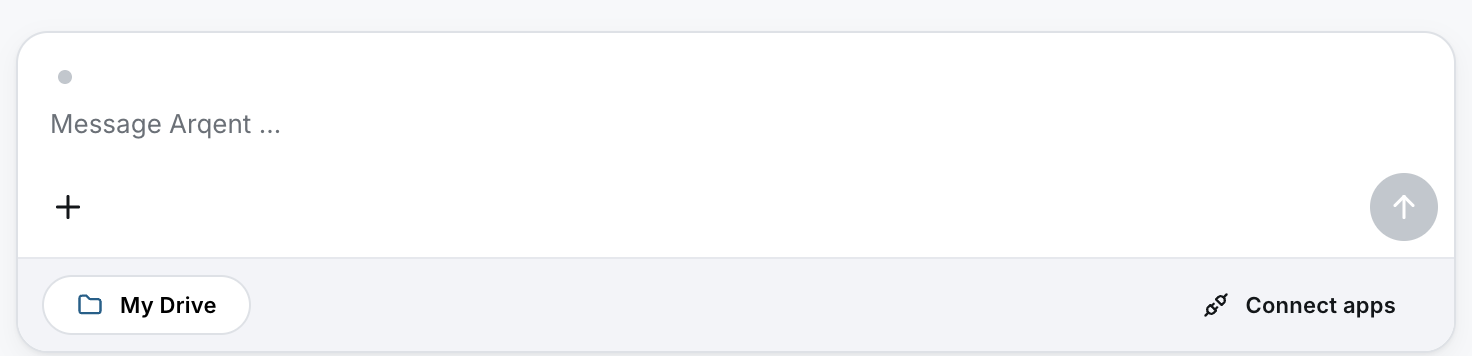
- Describe your task in Message Arqent ….
- Add the context needed and your preferred result format.
- Click Send.
Improve answers
Ask follow-up questions or request changes in the same conversation: “Shorten the answer,” “Explain the second point” or “Show the tasks as a table.”
Each response offers Copy to copy it and Regenerate answer to create another version. A regenerated answer may be different; review it as well.
Stop a response in progress
While Generating answer … is displayed, select Stop response. Then clarify what you need.
Use files
Attach file opens the file picker. Before sending, check that the intended file appears as an attachment. Supported formats and processing depend on your environment's configuration.
My Drive opens your files. Opening Drive doesn't select a file as a chat source. See Work with a document.
Find previous conversations
The sidebar groups past conversations by time period. Open an entry to continue the conversation. Start a new chat for a substantially different topic.
Models and features
A conversation may display the name of the model in use. Your organization's configuration determines which models and features are available. You don't need your own model credentials for your first chat.
Try it: Complete your first task