Find content
Global search helps you find available content. It also shows which areas are searched and where results are incomplete.
Start a search
- Select Search in the navigation. On a Mac, you can also press ⌘K.
- Enter a name, title or relevant term.
- Wait for the results to load.
- Check each result's area and description.
- Open the appropriate entry.
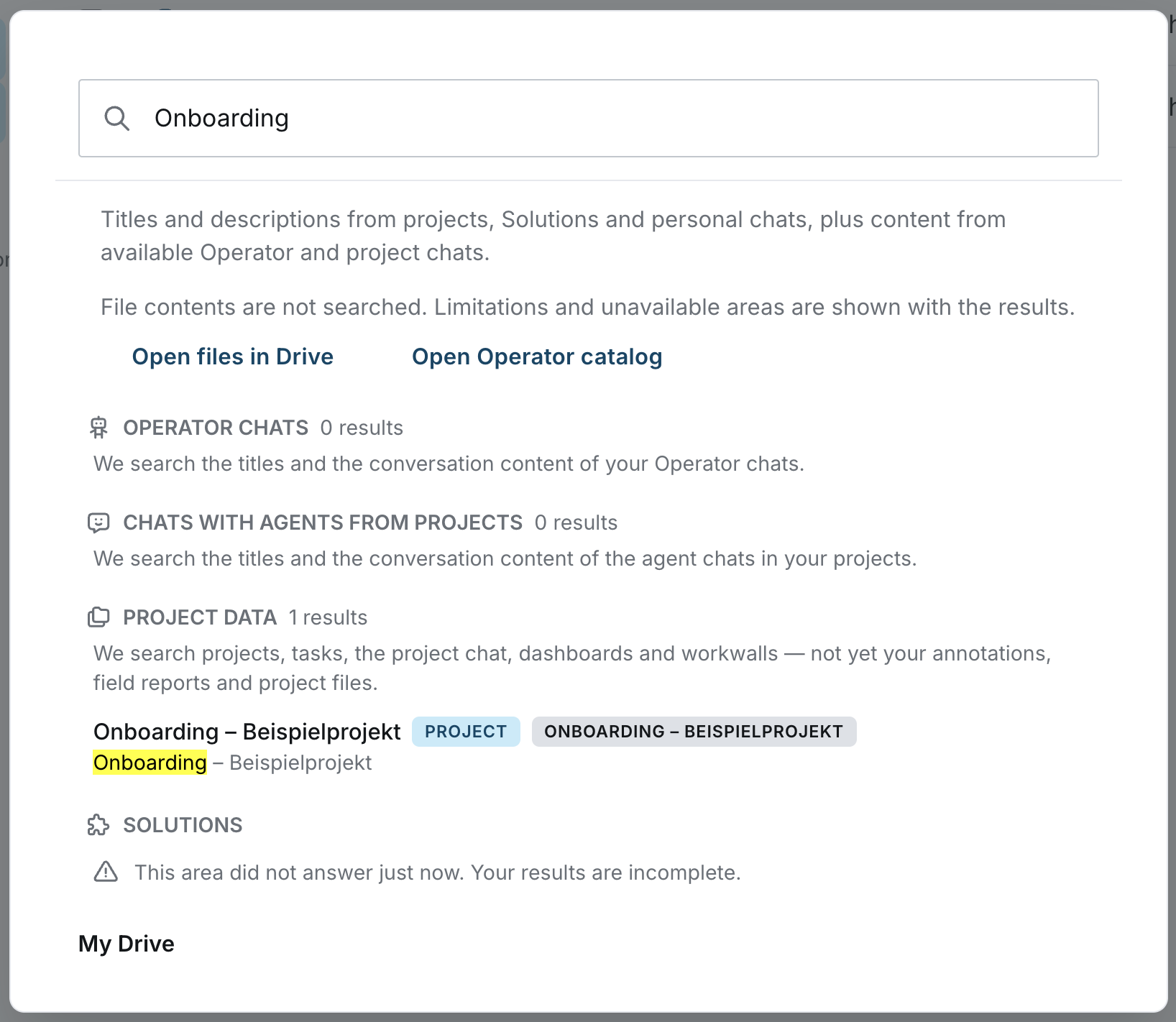
Understand the search scope
| Area | What to keep in mind |
|---|---|
| OPERATOR CHATS | Titles and conversation content from available Operator chats. |
| CHATS WITH AGENTS FROM PROJECTS | Titles and conversation content from available Project Agent chats. |
| PROJECT DATA | Search lists the project data it covers and areas it doesn't yet include. |
| My Drive | Filenames and folder paths matched by word prefixes; not file contents. |
| Operator Drive | Select an Operator under Choose an Operator. Other Operator Drives aren't included in that search. |
No results or incomplete results
- Try a shorter term or the beginning of a word.
- Check that you're searching the right area and can access the content.
- Use Open files in Drive to find files in their folder context.
- Look for notices such as Your results are incomplete. This means an area didn't respond, not that no matching content exists there.
Document content and filenames
A word inside a document may not appear in a filename search. Rely on the scope stated by the search view you're using.
Next: Manage files in Drive
Something missing or looking different in your workspace?
Here's how to get support.