Work with Operators
Operators are digital team members. Their task descriptions help you choose where to start. What they can do also depends on available features, data, connections and permissions.
Choose an Operator
- Select Operator on the left.
- Use Find an Operator to search by name or a term from a task description.
- Read the description of a suitable Operator.
- Select Open Operator, or Open conversations for an Operator you've used before.
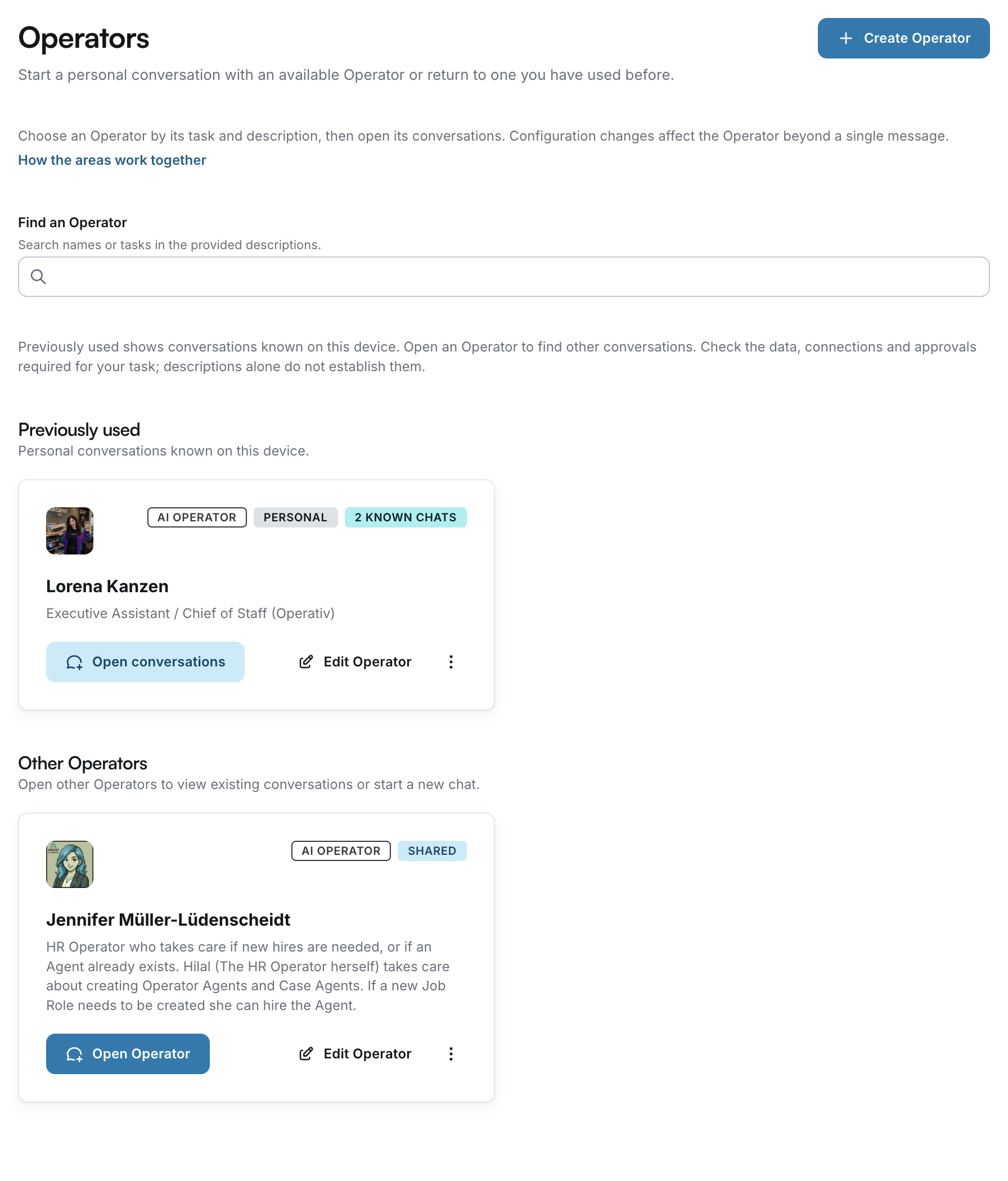
Start a conversation
After opening an Operator, you'll see their conversations. You can open a previous conversation directly.
For a new topic, select New chat with … for the Operator or New Operator chat. Describe your goal, context and expected result. Use Send to submit your message.
Check the conversation context
Before sending, check whether you're in a new conversation or an existing one. Previous content may be unsuitable for a different task.
Explore the workspace
Alongside Chat, you may find views such as Cost & performance, Memory, Routines and Files, where available.
Use Collapse conversations to hide the conversation list and Expand conversations to show it again.
Select files in an Operator chat
Use + beside the message box to select an existing file or upload one from your computer. The options depend on whether the Operator is private or shared:
| Operator | Where its files are stored | What the attachment menu shows |
|---|---|---|
| Private | In a folder inside the owner's personal Drive | Choose from My Drive for existing files; Put into {name}'s storage to upload a new file into the Operator folder |
| Shared | In a separate Operator workspace, apart from your personal Drive | Choose from {name}'s storage for existing Operator files and, where available, Choose from My Drive for your files |
For a private Operator, the missing Choose from {name}'s storage option doesn't mean its files are in a hidden second Drive. Its folder and My Drive are part of the same file area. Select Choose from My Drive, open the operator folder, then open the folder named with the Operator ID. The Operator's Files tab, if you can access it, opens its folder directly.
Upload from this computer puts a file in your Drive's uploads folder for a private Operator. Put into {name}'s storage puts it in the Operator folder. Both actions attach the uploaded file to your current message. Check the displayed filename before sending. Choose from My Drive selects a file already stored there; merely opening the picker doesn't attach anything.
For a shared Operator, its workspace and your personal Drive are separate areas. Files in the Operator workspace may be visible to other members of your organization. Choose the destination deliberately. See also Manage files in Drive.
Understand tasks and configuration
A message describes your current task. Edit Operator, Settings and New Operator concern setup and may affect more than one conversation. You don't need to change the configuration for everyday collaboration.
Handle questions and approvals
Read the latest message. If information is missing, reply in the same conversation. If an approval is requested, review the proposed scope and use the action provided.
See A task is waiting or has failed.
Guide: Assign a task to an Operator